A step-by-step Roomba setup and smart home integration walkthrough shows how to get a robot vacuum online, paired, and voice-controlled. Many owners hit pairing timeouts, mismatched Wi‑Fi bands, and confusing voice-assistant links that stop the first clean. Readers will walk away with a tested quick-start checklist, copyable automation templates, and clear troubleshooting steps to finish a reliable first run.
The guide covers initial unboxing and charge routines, reproducible network diagnostics, Alexa, Google, and HomeKit linking, and copyable automation templates for common flows. Included downloads are a one-page quick-start checklist and an editable JSON template pack for Alexa, Google Home, HomeKit, IFTTT, and SmartThings. Model compatibility notes and short test steps help confirm features like AutoEmpty, 2.4 GHz requirements, and mapping limits before relying on automations.
Homeowners, renters, parents, pet owners, and smart-home hobbyists will find the steps cut setup time and reduce repeated app and network trips. A ready-to-use routine in the downloads starts a 30-minute pet-hair sweep when Alexa Guard arms and then returns the vacuum to its dock. Follow the step-by-step checks and templates to get a dependable Roomba setup and predictable smart-home control.
If you want a Roomba recommendations, see the best Roomba model guide.
Roomba Setup & Smart Home Key Takeaways
- Finish initial Roomba setup by charging fully then following the in-app Add a Robot flow.
- Use 2.4 GHz Wi‑Fi or the same band as your phone for initial pairing on many models.
- Log Roomba model and firmware versions before troubleshooting network or pairing failures.
- Link the iRobot Home account to Alexa or Google Assistant using the same email.
- Use the downloadable quick-start checklist and editable JSON templates for automations.
- Test each routine once by voice and once from the assistant app before scheduling.
- Isolate Roomba on a guest SSID or VLAN to limit access and protect privacy.
How Do You Quick Start Roomba Setup Step By Step?
A quick Roomba initial setup gets your robot from box to cleaning with clear, low-friction steps.
Follow these steps to finish a fast Roomba setup:
- Pre-setup checks:
- Unbox and confirm the Home Base (dock), power cable, and a visible model number.
- Remove shipping tabs and clear about 3–4 feet of floor in front of the dock.
- Place the Home Base against a flat wall and level surface.
- Charge before pairing.
- Place your Roomba on the Home Base and wait until the battery indicator shows full.
- A full charge reduces the chance of firmware timeouts during pairing.
- Install the app.
- Install the iRobot Home App (some stores list it as the Roomba Home App).
- Create or sign in to your iRobot account and tap Add a Robot to start guided setup.
- Network connection.
- Choose Wireless Fidelity (Wi‑Fi) when prompted.
- Use the app to connect Roomba to Wi‑Fi by selecting the correct SSID (use 2.4 GHz if required) and entering the password.
- Pairing gesture and checks.
- Follow the Roomba pairing instructions shown in the app.
- Many Wi‑Fi models ask you to press and hold the CLEAN button until a tone or blinking Wi‑Fi light indicates pairing mode.
- Verify and test.
- Confirm firmware is up to date.
- Name the robot, create a basic schedule, and run a short cleaning job to test navigation and that Roomba returns to the dock.
This Roomba setup guide covers the essentials for a smooth first run and helps you avoid common pairing hiccups.
How Do You Diagnose Network And Connectivity Issues Reproducibly?
A repeatable diagnostics checklist makes network and connectivity faults much easier to reproduce and fix.
Start by logging these details:
- Roomba model and firmware/app version
- Phone operating system and model
- Router service set identifier (SSID) and band (2.4 GHz vs 5 GHz)
- Exact error messages shown by the app
- Date and time for each test run
Confirm network parity during setup:
- If you have a 2.4 GHz Roomba, connect your phone to the same 2.4 GHz network before pairing. Many older and budget models do not support 5 GHz.
- Enable Bluetooth and grant location and app permissions, then use the Roomba pairing instructions in the app to isolate discovery from Wi‑Fi problems.
- Reboot the modem and router, then try a phone hotspot (create a 2.4 GHz access point if possible). Success on a hotspot points to router settings such as SSID isolation or band steering.
Use controlled retries and device swaps:
- After every change, run the exact checklist and record pass/fail results
- Try a second phone to rule out device-specific issues
- Only factory-reset the robot after repeating the same failed flow
Keep your log for Roomba troubleshooting and to share with support when you need help.
How Do You Connect Roomba To Alexa, Google And HomeKit?
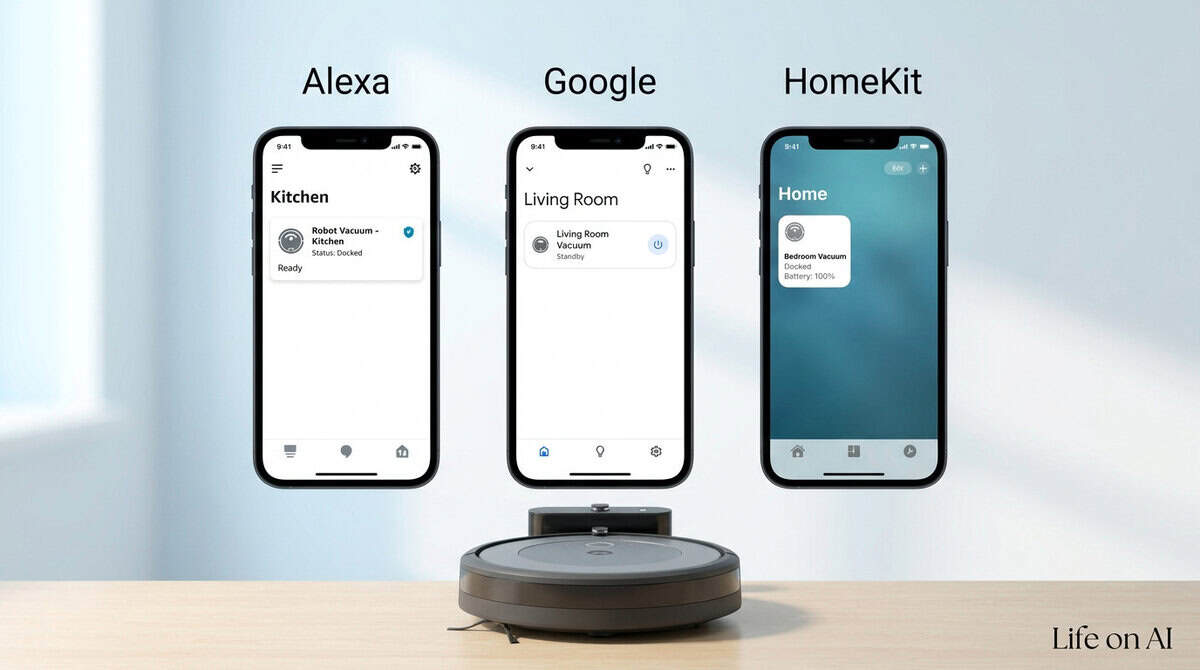
Voice control makes cleaning hands-free, but successful Smart home integration depends on matching accounts and granting permissions before you try voice commands.
For Roomba Alexa setup, follow these steps exactly:
- Open the Alexa app and tap More, then Skills & Games.
- Search for iRobot Home, enable the skill, and sign in with the same iRobot account you used for the robot.
- Wait a few minutes for the robot to register and accept any permission prompts.
- Run Alexa device discovery and assign the vacuum to a device group if prompted.
For Roomba Google Assistant, use this sequence:
- Open Google Home and tap the + icon.
- Choose Set up device, then Works with Google.
- Search for Roomba or iRobot, select the account link, and sign in using the Roomba Home App credentials.
- Assign the vacuum to a room so voice commands like “Hey Google, start vacuum in Kitchen” work reliably.
HomeKit support has important caveats you should check:
- Look for an Add to Apple Home or HomeKit option inside the iRobot Home App under Settings > Smart Home.
- If HomeKit is not listed, consider a HomeKit bridge such as Homebridge or HOOBS as an alternative.
- Expect fewer native commands via HomeKit when compared with Alexa or Google Assistant.
Model and network limitations to verify before linking:
- Only Wi‑Fi Roomba models support voice linking. Bluetooth-only units will not connect.
- Some robots require a 2.4 GHz or mixed-band router for pairing.
- Clean Base or Auto-Empty models may expose extra controls like empty bin or return to base.
If discovery fails, try these troubleshooting steps:
- Confirm the robot is online and fully registered in the app.
- Use the same email across apps and accept all device/control permissions.
- Restart the router, reboot the Roomba, and reopen the voice-assistant app.
Confirm compatibility in the app and on iRobot support pages before relying on voice control.
How Do You Create Copyable Alexa Automation Recipes?
Copyable Alexa routines let you start Roomba runs and automate tidy-ups using exact voice phrases, actions, and troubleshooting notes.
Test these ready-to-paste routines:
- Roomba Clean Now
- Voice: “Alexa, start Roomba.”
- Actions: Smart Home → Control device → Roomba → Start cleaning.
- Alexa reply: “Starting the Roomba now.”
- Troubleshooting: If Alexa reports the device as unavailable, open the iRobot Home app in Google Play or Apple App Store to verify the Alexa link.
- Evening Tidy
- Voice: “Alexa, evening tidy.”
- Actions: Smart Home → Turn off living room lights. Smart Home → Roomba → Start cleaning for 30 minutes (confirm duration in the iRobot Home app).
- Alexa reply: “Evening tidy complete.”
- Troubleshooting: If the run stops early, check battery level and conflicting schedules in the iRobot Home app.
- Pet Hair Sweep (hybrid)
- Triggers: Schedule daily at 2:00 PM and voice “Alexa, do Pet Sweep.”
- Actions: Roomba → Clean on Eco or default mode. Optional: Smart Home → Set thermostat to 72 degrees Fahrenheit.
- Notes: Verify your model supports Alexa voice control in the iRobot Home app and remove any virtual barriers before testing.
- Leaving Home Clean (Alexa Guard)
- Triggers: Alexa Guard changes to Away or voice “Alexa, I’m leaving.”
- Actions: Alexa Guard → Arm Away. Smart Home → Roomba → Start cleaning.
- Troubleshooting: Confirm Alexa app location permissions, re-link the iRobot skill, and ensure a stable Wi‑Fi connection for both devices.
Follow this checklist before testing routines:
- Complete Roomba Alexa setup by installing and opening the iRobot Home app and confirming firmware and account links.
- Verify Roomba appears and is controllable in Alexa’s Smart Home devices and review Roomba scheduling settings.
- Test each routine once by voice and once from the Alexa app.
- If Alexa errors persist, unlink and re-link the iRobot skill, reboot the Roomba base, and verify network credentials.
How Do You Create Copyable Google Home Automation Recipes?
These three paste-ready Google Home routines get a Roomba cleaning on schedule or by voice and include short troubleshooting tips for common failures.
Copyable routine templates:
- Morning whole-home clean
- Trigger: Schedule — 9:00 AM weekdays
- Voice fallback: “Hey Google, start Roomba”
- Actions: Send a command “Start cleaning”, wait 90 to 120 minutes, Send a command “Return to dock”
- Roomba mapping: start, timed run length, auto-dock
- Quick spot cleanup
- Trigger: Voice phrase
- Voice command: “Hey Google, Roomba spot clean”
- Actions: Send a command “Spot clean”, Send a command “Play chime” (optional)
- Roomba mapping: spot-clean mode and immediate stop if obstruction detected
- Tip: Clear the area before invoking the routine
- Leaving-home sequence
- Trigger: Voice phrase “I’m leaving” or a leave-time schedule
- Actions: Send commands to turn off lights, Send a command “Start cleaning”, Send a command to lock smart lock
- Roomba mapping: start plus auto-dock on completion; if Imprint Smart Mapping is supported, use “clean living room” instead of whole-home
Exact Google Home routine steps to enter each template:
- Create Routine
- Add starter (Voice or Schedule)
- Add action → Select “Try adding your own” → “Send a command” and paste the quoted phrase
- Save and test
Capture screenshots while testing because iRobot’s documentation often lacks step-by-step images. If a routine fails, check the Roomba app is logged in, confirm Google account linking, verify 2.4 GHz Wi‑Fi connectivity, and test the Roomba Google Assistant voice command directly in the Assistant app before embedding the phrase in a routine.
How Do You Create Copyable HomeKit Scene And Shortcut Recipes?
Copy the ready-to-use HomeKit scene and Shortcut recipes below to run a Roomba from Apple automation tools.
HomeKit scene example (paste into a bridge or import tool):
- {“type”:”scene”,”name”:”Roomba Quick Clean”,”actions”:[{“device”:”My Roomba”,”characteristic”:”power”,”value”:”start”},{“device”:”HomeHub”,”characteristic”:”mode”,”value”:”home”}],”trigger”:”manual”}
Field annotations:
- type: scene indicates a group of actions.
- name: change “Roomba Quick Clean” to your scene title.
- device: replace “My Roomba” with the exact accessory name shown in the Home app.
- trigger: set to manual or change to a schedule-compatible value.
Shortcut (iOS Shortcuts) example and import steps:
- {“name”:”Start Roomba”,”actions”:[{“action”:”Home”,”scene”:”Roomba Quick Clean”},{“action”:”Wait”,”seconds”:600},{“action”:”Home”,”scene”:”Roomba Return To Dock”}]}
Import steps:
- Open Shortcuts, tap ··· on a shortcut, choose Add Action → Scripting → Run Home Scene.
Required Home app and iOS permissions:
- Apple ID with iCloud Keychain enabled
- A Home hub (Apple TV or HomePod) for remote access
- Allow Remote Access turned on in Home settings
- Shortcuts permission to control the Home app (grant Home access and Use While Running)
Shortcuts run on iOS, while companion and setup apps are available for iOS and Android.
Model compatibility and quick test:
- Cloud-bridged control works via the iRobot cloud for most Wi‑Fi Roombas.
- Local LAN control requires a model with a local API or a Homebridge plugin.
- Test: create a start/stop scene, run it with Wi‑Fi active, then test behavior when the bridge loses cloud access to confirm local vs cloud control.
How Do You Create Copyable IFTTT And SmartThings Flows?
Ready-to-import flows let you test automations without guessing field names or device IDs.
Two ready-to-import flows follow:
- IFTTT Applet example:
- Trigger: service = irobot, event = cleaning_finished, ingredient = {{room}}
- Conditions: mode = Home, time = 09:00–21:00
- Actions: Notifications → Send a push; irobot → start_charging
- Fields/JSON snippet for copy/paste:
- {“triggerService”:”irobot”,”event”:”cleaning_finished”,”ingredient”:”{{room}}”,”actionService”:”notifications”,”action”:”send_push”}
- Verify:
- Simulate finish in the iRobot app or send the test trigger.
- Expect a push within ~30 seconds and Roomba status “docking.”
- Check the IFTTT activity log for success.
- SmartThings Automation example:
- Trigger: capability = battery, condition = battery < 20% OR event = cleaningCompleted
- Conditions: locationMode = Home, presence = true
- Actions: callDeviceCommand(deviceId=”YOUR_DEVICE_ID”, command=”dock”); send mobile notification
- JSON snippet:
- {“deviceId”:”YOUR_DEVICE_ID”,”command”:”dock”,”app”:”iRobot-Edge”}
- Verify:
- Force a low-battery simulation or trigger cleaningCompleted.
- Watch SmartThings Live Logs and the SmartThings mobile notification.
- Confirm Roomba shows “charging” in the iRobot app.
Common failure modes and quick fixes:
- Missing authorization: re-link accounts in IFTTT or SmartThings.
- Wi‑Fi dropouts: add a retry/debounce of 30–60 seconds.
- Incorrect device IDs: replace placeholders with your deviceId values.
If an automation misbehaves, disable it and restore the original schedule.
Which Roomba Models Support Which Smart Features And Limits?
A compact compatibility matrix makes it easier to match Roomba features to your home and routines.
This Roomba model compatibility summary groups models into Flagship, Midrange, and Budget families and notes common limits.
Model families and typical feature limits:
- Flagship (s9, j7, i7/i8): HomeKit is not usually native and often needs a third-party bridge. Roomba Auto-Empty is supported on “+” variants and some Clean Base docks. Mapping uses camera vSLAM rather than LiDAR, which can struggle in very dark or reflective rooms. Recent firmwares often add 5GHz support, but many smart features and voice links require an iRobot account and cloud services. For Roomba j Series setup expect camera-based mapping steps and cloud-dependent voice integration.
- Midrange (i3, i4, i5): HomeKit is generally absent. AutoEmpty appears on select “+” pairs such as i3+. Mapping ranges from basic persistent maps to limited vSLAM. Older midrange units often require a 2.4GHz network for initial pairing while newer ones add 5GHz. Expect higher cloud reliance for most smart features and voice assistants, which affects local control options. Roomba i Series setup commonly requires confirming Wi‑Fi band and map saving in the app.
- Budget/Essentials (Essentials, e/600/800-series): No native HomeKit support. AutoEmpty is generally not available. Mapping is minimal or non‑persistent. Wi‑Fi tends to be 2.4GHz only on older and entry models. Controls are mostly local with limited cloud features, which can simplify privacy but reduce remote app and voice functionality.
Hybrid models such as the Roomba Combo 10 Max add mopping hardware and may follow midrange connectivity patterns for mapping and docks.
Quick setup and troubleshooting tips:
- Run the latest iRobot Home app and install firmware updates before setup.
- If pairing fails, enable a 2.4GHz SSID or create a temporary separate SSID for setup.
- Confirm AutoWash Dock setup and check pad wash roller, ramp attachments, and AutoEmpty dock compatibility.
- Use unofficial HomeKit bridges only if you accept added complexity and the security tradeoffs.
For side-by-side specs and feature details, check the roomba vacuum comparisons.
What Downloadable Assets And JSON Templates Can You Use?
Downloadable assets let you finish Roomba setup and diagnose problems without hunting through support pages.
The download bundle contains these core items:
- Quick-Start checklist (one-page PDF, printer-friendly): model-specific first-boot steps such as charging, Wi‑Fi band selection, app pairing, firmware update, and voice-assistant linking.
- Troubleshooting flowchart (PDF + high-contrast PNG): reproducible diagnostics mapped to short fixes and expected outcomes.
- Configurable routine and template pack (editable JSON files): ready-to-import automations for Alexa, Google Home, and HomeKit.
What each configurable pack includes:
- JSON snippets and a minimal manifest listing supported Roomba models and required app and firmware versions.
- Exact trigger phrasing, required permission scopes, and sample variable values for painless copy-paste imports.
- Step screenshots and common failure modes with fixes to reduce trial-and-error.
Model notes and compatibility help you pick the right asset:
- Each asset shows Roomba model compatibility so you can filter by what works for your robot.
- Special callouts list exceptions such as AutoWash Dock setup and models like Roomba Combo 10 Max.
A short import guide and ZIP download keep recovery simple:
- The ZIP contains editable JSON, a README, and printable PDFs.
- A single rollback tip explains how to revert a bad import and restore previous settings.
How Do You Troubleshoot Common Problems And Read Mini Case Studies?
Practical Roomba troubleshooting starts with a repeatable test and a simple verification you can run at the end. Reproducing the failure narrows the root cause and speeds the fix. Roomba troubleshooting relies on clear symptoms, environment details, and step-by-step checks you can repeat.
A common case: the vacuum times out during pairing. Reproduce it by putting the Roomba into pairing mode and attempting to add it from the Roomba Home app.
Environment details to record:
- Roomba model (example: j7+)
- App version (example: Roomba Home v2.3.1)
- Phone operating system (example: iPhone iOS 17 or Android 14)
- Wi‑Fi band (2.4 GHz or 5 GHz)
Annotated mini case steps:
- Run the reproducible test and capture the app error or timeout.
- Root-cause note: most timeouts follow a mismatch between Roomba and phone on Wi‑Fi or weak signal.
- Fix: move phone closer, confirm both devices are on the 2.4 GHz network, follow the app pairing flow to re-attempt.
- Verify by confirming the app shows the device as connected and by starting a remote clean.
A second case focuses on docking and charging failures. The symptom is no charging light when the Roomba sits on the dock. Reproduce by placing the robot on the dock and pressing the dock button.
Environment details to record:
- Roomba model and dock model
- App version and phone OS
- Dock power source (wall outlet) and measured dock voltage
- Wi‑Fi band if the app reports battery status
Annotated mini case steps:
- Check dock power and press the dock button to observe LED response.
- Inspect and clean charging contacts with isopropyl alcohol and a dry cloth.
- Reseat the dock power connector and confirm the outlet works.
- Verify charging in the app and watch the battery percentage rise.
For connectivity and firmware failures, follow this reproducible flow:
- Confirm Roomba and phone share the same 2.4 GHz SSID during tests.
- Force-quit and reopen the Roomba Home app.
- Restart the router and power-cycle Roomba before retrying the update.
- Run the firmware update from the app.
- If the update still fails, perform the model-specific factory reset and re-add the account following the manufacturer steps.
Writer checklist to include under each case:
- Exact buttons and commands pressed
- App screenshots or log snippets and any error codes
- Time-to-reproduce measurement
- Rollback steps if an automation or routine breaks
- One-line confirmation test readers can run to validate the fix: open the app and confirm the device shows “Connected” and responds to a remote start command.
Roomba Setup And Smart Home FAQs
These FAQs gather the most common questions about Roomba setup.
They walk you through Roomba initial setup, Wi‑Fi and voice-assistant linking, and smart-home compatibility, and help you decide whether a roomba is worth it to help you decide if a robot vacuum fits your home.
1. How do I backup and restore Roomba settings?
Sign into the iRobot Home app to back up your Roomba. The app syncs maps, schedules, and cleaning preferences to your iRobot account. Those settings restore automatically when you sign into the same account on a new phone or after reinstalling the app. Local map cache on the robot is temporary. It may be lost if you unplug the unit or run a factory reset.
Quick restore workflow:
- Reinstall the iRobot Home app and sign into the same account.
- Wait a few minutes for the robot to re-register and for maps and schedules to repopulate.
- Confirm maps and schedules appear in the app.
Use factory reset only for ownership transfer, persistent connectivity or mapping failures after app restores, or when iRobot support instructs. Resets erase local maps and require re-registration to your iRobot account.
2. How to schedule firmware updates without disrupting automations?
Firmware updates install navigation improvements, bug fixes, and security patches that keep automations reliable and safe.
Plan a Roomba firmware update for a low-activity window such as late night, stagger updates in homes with multiple robots to avoid simultaneous downtime, and start each install only when you dock the robot and it’s charging above 50% on its Home Base.
Temporarily pause scheduled routines in the app or enable a maintenance mode so the update finishes without interruption.
3. How to secure Roomba data and voice assistant integrations?
You should start with account hygiene: use a unique, strong password for the Roomba Home App, enable two-factor authentication, and unlink any unused Alexa or Google accounts to reduce your attack surface.
Limit voice-assistant permissions to only start/stop and status, review third-party skill and app permissions monthly, and audit and purge voice history and any optional camera or map uploads to keep mapping local.
Keep the Roomba Home App, firmware, and voice-assistant apps up to date, use WPA3 or WPA2-AES on your Wi‑Fi, avoid public networks for remote control, and isolate Roomba and other privacy-sensitive devices on a guest SSID or segmented VLAN so they can’t access cameras or computers on your main LAN.
4. Can Roomba work reliably on mesh Wi‑Fi networks?
Most modern Roomba models work well on mesh Wi‑Fi. Older or budget units often support only 2.4 GHz Roomba networks, so check your model if you see repeated dropouts. Position the Home Base near your primary router or a strong mesh node to improve connection. Keep mesh nodes in open sightlines and away from thick walls or metal appliances so the app can reach the main node during setup.
Quick fixes for common mesh failures:
- Reboot the mesh node nearest the dock.
- Temporarily move the dock closer to the router to re-pair.
- Create a dedicated 2.4 GHz SSID and forget then re-add the robot to that network.
- Disable client steering or band steering while pairing, then re-enable once the robot stays connected.
After the Roomba remains online, restore normal mesh settings and test the connection.
5. How do multiple users control Roomba concurrently?
A single primary iRobot/Home app account keeps control predictable and prevents conflicting commands. Add household members as shared users, allow a few minutes after setup for device registration, and use clear names like “Vacuum: Living Room”. Decide who sets schedules versus who runs on-demand cleans and designate one voice assistant (Alexa, Google Assistant, or HomeKit) as the primary while disabling overlapping routines in other assistants.
Quick tips to avoid race conditions:
- Check the Roomba’s real-time status in the app before sending a new command.
- Wait 10–30 seconds between competing requests and enable notifications so everyone sees when the robot is active.
- Centralize triggers with a single automation or scheduled routine.